

Description
Download Screen Recording Suite – Free Screen Recorder for Windows, Mac & Mobile
Introducing Screen Recording Suite: Your All-in-One Video Capture Solution
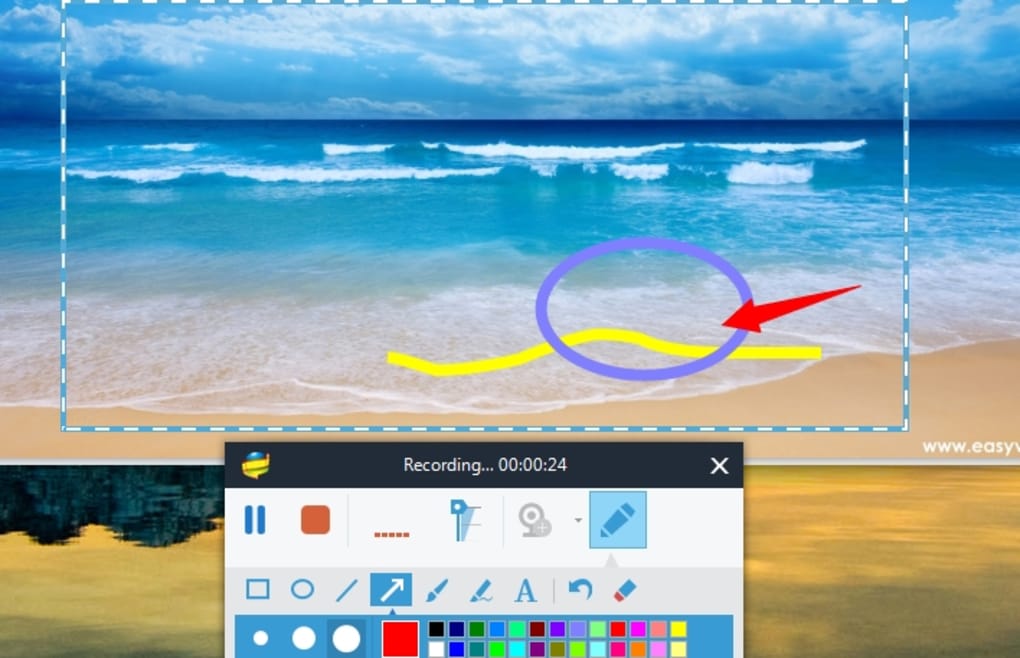
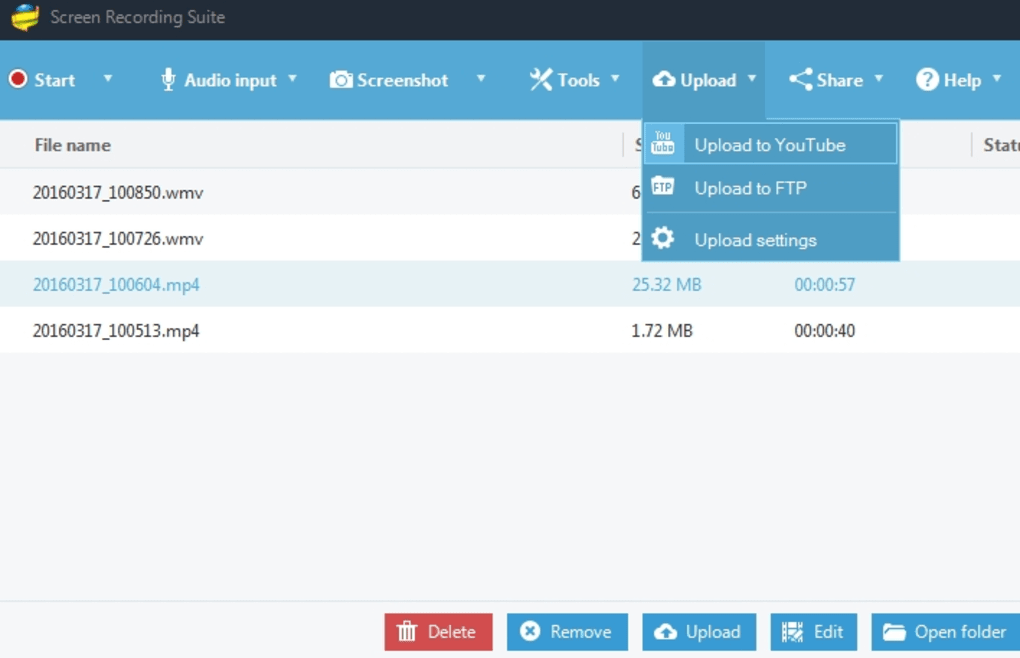
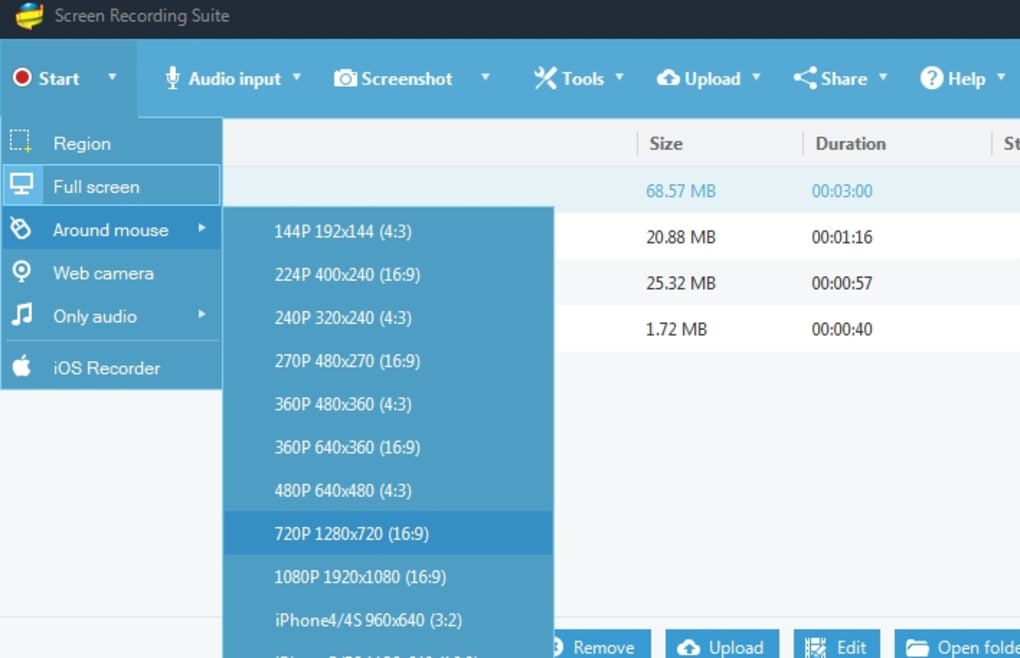
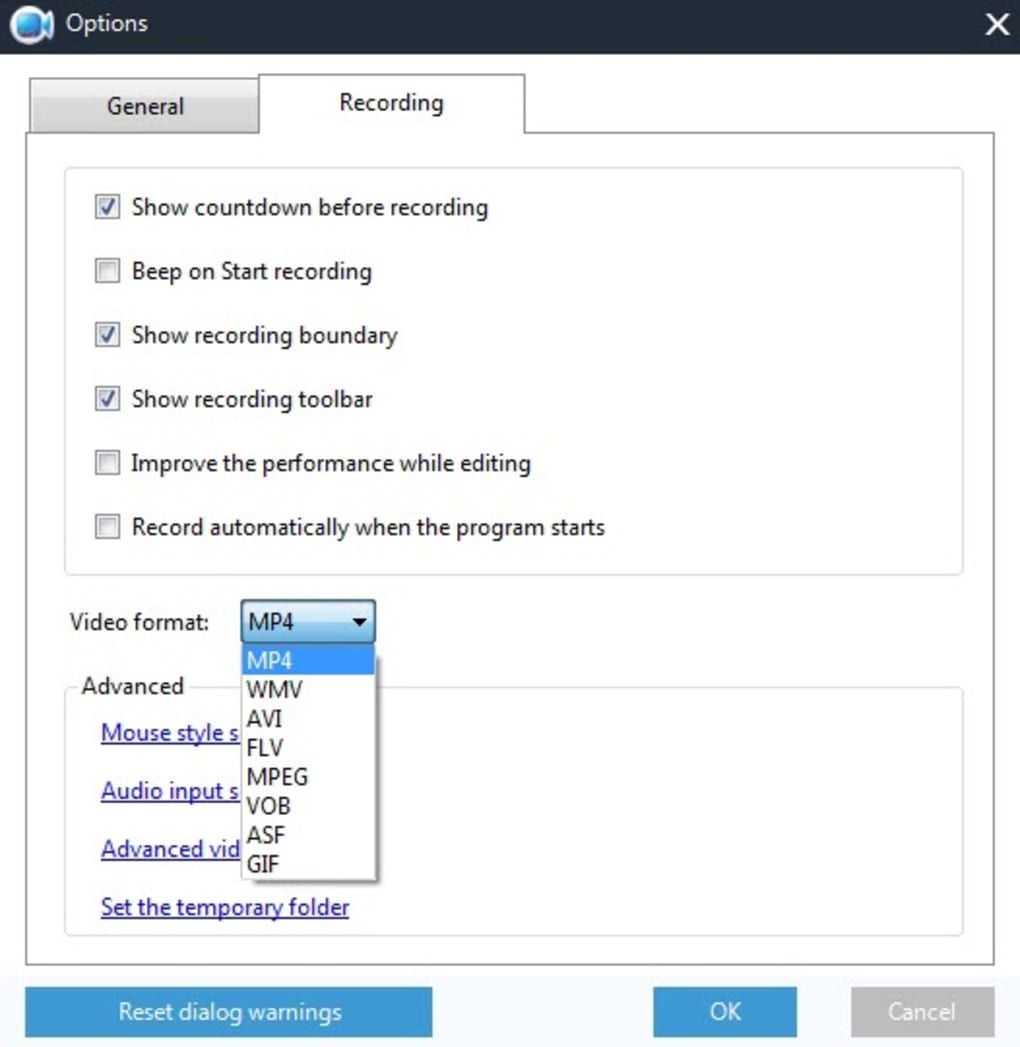
Screen Recording Suite is a versatile and powerful screen recording software designed for users who need to capture high-quality video content quickly and efficiently. Whether you're creating educational tutorials, producing training videos, recording live streams, or capturing podcast sessions, this tool delivers professional-grade results. The software supports multiple input sources, including your computer’s internal audio, external microphones, musical instruments, screen content, and webcam feeds—all simultaneously. This multi-source recording capability sets it apart from basic screen capture tools. One of the standout features is its intuitive interface, which makes it accessible even to beginners. With just a single click on the prominent red Start button, the software initiates a 3-second countdown before recording begins, ensuring you’re ready when the action starts. The picture-in-picture mode, activated with a simple click on the webcam icon, allows you to include your face in the video—ideal for personal tutorials or gameplay commentary. Screen Recording Suite also includes a built-in video editor, which removes the need to switch between multiple tools. This editor supports essential functions like cropping, trimming, compressing, and converting videos into popular formats such as MP4, AVI, MKV, FLV, SWF, and 3GP. For users targeting specific platforms, the software comes with pre-configured export profiles for Apple, Android, and Sony devices, streamlining the sharing process. Despite saving recordings in WMV by default—a format less compatible with some editing suites—this limitation is easily overcome thanks to the robust in-app conversion tools. Overall, Screen Recording Suite is a secure, reliable, and user-friendly solution for anyone looking to create polished, professional content without the complexity of advanced video editing software.
Powerful Features That Make Screen Recording Suite a Must-Have Tool
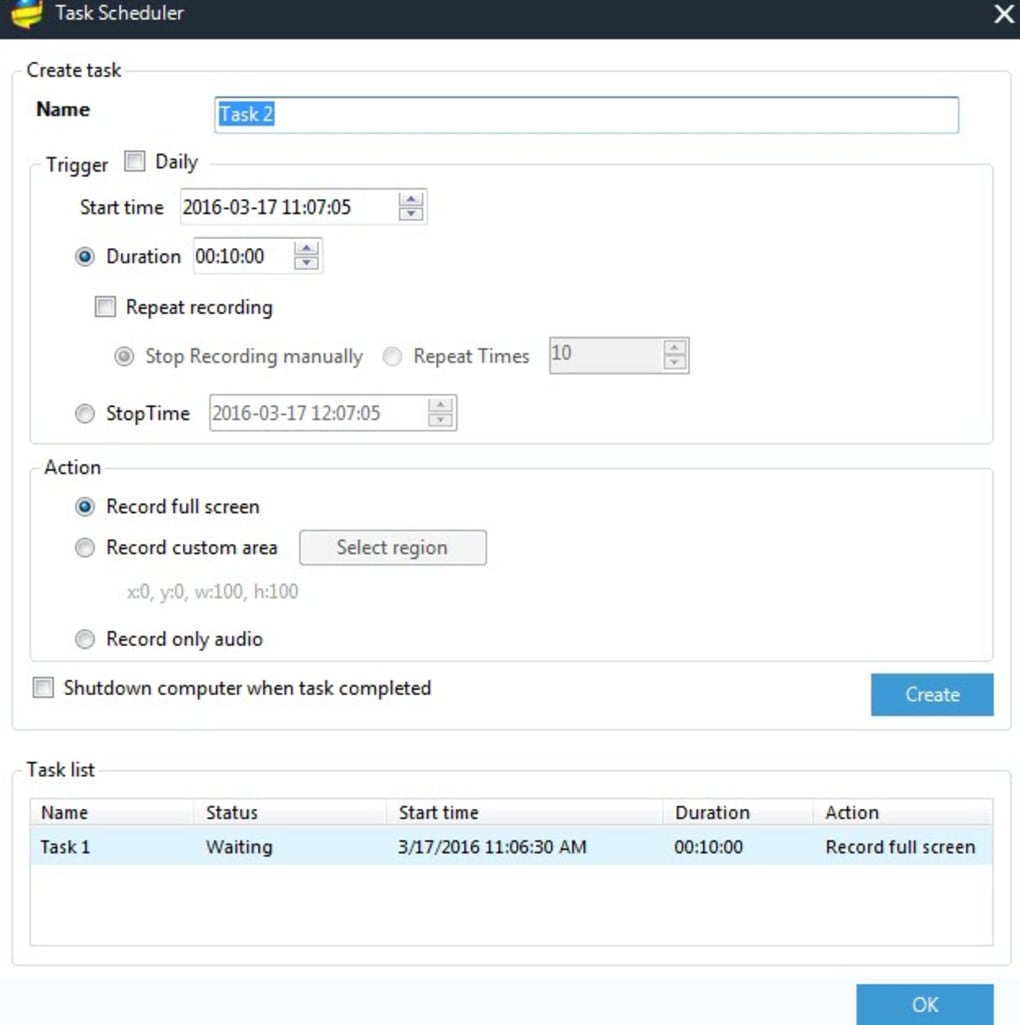
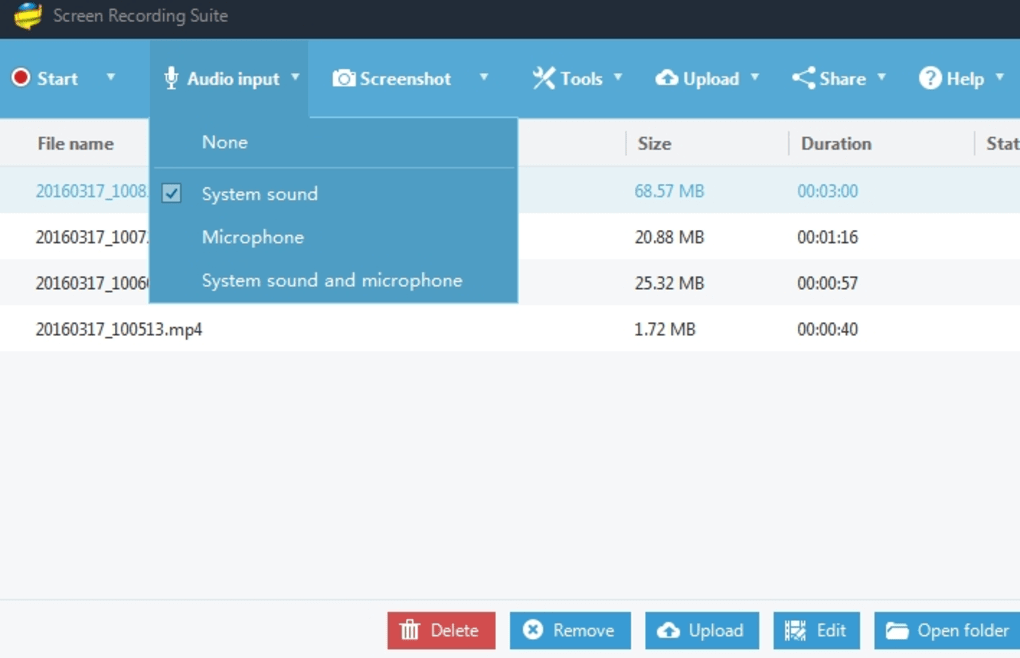
Screen Recording Suite isn’t just a screen recorder—it’s a complete video production suite in one application. Its feature set is thoughtfully designed to meet the needs of educators, content creators, gamers, and remote workers alike. One of the most valuable features is its ability to capture multiple audio sources simultaneously. You can record system audio (internal sound), microphone input, and even external audio devices like a guitar or MIDI keyboard, making it ideal for music tutorials or podcasting. The software also supports full-screen and region-based screen recording, giving you precise control over what gets captured. Whether you’re demonstrating a software feature or recording a specific window, you can choose exactly what to include. Another major highlight is the built-in video editor, which eliminates the need for third-party tools. With just a few clicks, you can trim unwanted segments, crop the frame, adjust brightness and contrast, and compress files to reduce size without sacrificing quality. The export options are extensive: MP4 for web sharing, AVI for compatibility with older systems, MKV for high-quality archives, and 3GP for mobile devices. For cross-platform creators, the pre-set export profiles for Apple, Android, and Sony devices are a game-changer—no more guessing settings. The software also includes a customizable recording schedule, allowing you to set automatic start and stop times, perfect for recording long streams or scheduled webinars. Additionally, Screen Recording Suite supports real-time preview during recording, so you can monitor your video and audio levels. All features are accessible through a clean, minimal interface that doesn’t overwhelm users. With regular updates, the developers ensure the software remains secure, fast, and compatible with the latest operating systems. Whether you're recording a quick tutorial or a full-length course, Screen Recording Suite adapts to your workflow.
Easy Installation & Seamless Usage Across Devices
Getting started with Screen Recording Suite is straightforward and hassle-free. The installation process is quick—just download the installer from the official website, run it, and follow the on-screen prompts. The software is lightweight, requiring minimal system resources, so it won’t slow down your computer even during long recording sessions. After installation, you’ll be greeted by a clean, modern interface with clearly labeled buttons and intuitive navigation. To begin recording, simply click the red Start button in the top-left corner. A 3-second countdown ensures you’re prepared, and the recording starts smoothly without lag. You can choose to record your entire screen, a specific window, or a custom region. For webcam integration, just click the webcam icon, and the software instantly switches to picture-in-picture mode, overlaying your face in the corner of the screen. This feature is especially useful for vlog-style tutorials or gameplay commentary. Once recording is complete, you can immediately access the built-in video editor to trim, crop, or convert the file. The software supports drag-and-drop functionality, so you can import videos from other sources and edit them seamlessly. For users on Windows, Mac, Android, and iOS, Screen Recording Suite offers consistent performance and feature parity across platforms. While the desktop version is fully featured, the mobile apps provide convenient on-the-go recording and quick sharing. The mobile version syncs with your desktop library, so you can start a recording on your phone and finish it on your computer. Regular updates ensure compatibility with new OS versions and security patches. The software is completely free to download and use, with no hidden fees or trial limitations. It’s a secure choice, with no ads or bundled malware. Whether you’re a student, teacher, marketer, or streamer, Screen Recording Suite fits effortlessly into your daily routine.
Pros & Cons: Is Screen Recording Suite Right for You?
- Pros:
- Records screen, webcam, and multiple audio sources simultaneously
- Includes a built-in video editor with trimming, cropping, and format conversion
- Supports export to MP4, AVI, MKV, FLV, SWF, 3GP, and more
- Pre-configured profiles for Apple, Android, and Sony devices
- Simple, intuitive interface ideal for beginners
- Free to download and use with no trial restrictions
- Lightweight and low on system resources
- Real-time preview and customizable recording regions
- Cons:
- Default output format is WMV, which may require conversion for editing
- Advanced editing features (e.g., transitions, effects) are limited
- Mobile app lacks some desktop-level customization
- No cloud storage integration (files stored locally)
- Minimal customization options for recording hotkeys
Frequently Asked Questions (FAQ)
Is Screen Recording Suite free to download and use?
Yes, Screen Recording Suite is completely free to download and use. There are no trial periods, subscription fees, or hidden costs. You can record, edit, and export videos without any limitations.
Can I record my webcam while recording my screen?
Absolutely. Screen Recording Suite includes a built-in picture-in-picture mode. Simply click the webcam icon, and your webcam feed will appear in the corner of your screen during recording.
What video formats does Screen Recording Suite support?
The software supports a wide range of formats including MP4, AVI, MKV, FLV, SWF, and 3GP. You can convert your recordings to any of these formats using the built-in editor.
Is Screen Recording Suite compatible with Windows and Mac?
Yes, Screen Recording Suite is available for Windows and Mac operating systems. It also offers mobile apps for Android and iOS devices, ensuring cross-platform compatibility.
Can I edit my recordings directly in the software?
Yes, the software includes a built-in video editor with tools for trimming, cropping, compressing, and converting videos. This eliminates the need for additional editing software.
Final Verdict: Why Screen Recording Suite Stands Out
Screen Recording Suite delivers an impressive balance of power, simplicity, and affordability. It’s one of the most comprehensive screen recording tools available for free, especially for users who want to create professional-quality content without the learning curve of complex video editing software. Its multi-source recording, built-in editor, and platform-specific export profiles make it ideal for educators, content creators, gamers, and remote professionals. While the default WMV output may require conversion for some workflows, the in-app tools make this a minor inconvenience. The software is secure, regularly updated, and performs reliably across Windows, Mac, Android, and iOS. If you're looking for a free, easy-to-use, and feature-rich screen recorder that handles everything from recording to editing and sharing, Screen Recording Suite is an excellent choice. Don’t miss out—download it today and start creating stunning videos with confidence.
Guides & Tutorials for Screen Recording Suite
How to install Screen Recording Suite
- Click the Preview / Download button above.
- Once redirected, accept the terms and click Install.
- Wait for the Screen Recording Suite download to finish on your device.
How to use Screen Recording Suite
This software is primarily used for its core features described above. Open the app after installation to explore its capabilities.
User Reviews for Screen Recording Suite 0
No reviews found





